
Your slow woocommerce website could be hemorrhaging potential customers every second it takes to load. A slow website not only frustrates users but also impacts all types of ecommerce stores by reducing engagement, traffic, and revenue. In today’s hyper-competitive ecommerce landscape, even minor delays can devastate your bottom line and search engine rankings, especially if you’re dealing with a slow woocommerce site.
Unlike regular WordPress websites, woocommerce stores face unique performance challenges. Managing dynamic product catalogs, processing shopping cart updates, handling customer accounts, and integrating payment gateways creates significantly more server load than static websites. This complexity makes woocommerce speed optimization both more critical and more challenging than standard WordPress optimization.
The good news? With the right approach, you can dramatically improve your woocommerce store’s performance and unlock substantial revenue growth. This comprehensive guide reveals 14 proven methods to speed up your woocommerce site, boost conversions, and climb search engine rankings in 2024.
Why WooCommerce Speed Matters for Your Online Store
Website speed isn’t just a nice-to-have feature for ecommerce stores—it’s a critical business factor that directly impacts your revenue, customer satisfaction, and search engine visibility.
Every 100ms delay in load time reduces conversions by 7% according to Google’s 2023 research. For a woocommerce store generating $100,000 monthly, this translates to $7,000 in lost revenue for every additional tenth of a second your pages take to load. Speed is a key component of your store’s performance, as even small delays can negatively affect performance metrics and overall user experience.
The mobile impact is even more severe. 53% of mobile users abandon sites that take over 3 seconds to load, while your mobile customers likely represent a significant portion of your traffic. With mobile commerce accounting for over 54% of total ecommerce sales, slow mobile performance can cripple your business growth.

Search engines prioritize fast woocommerce stores in their rankings due to Core Web Vitals becoming official ranking factors. Google measures Largest Contentful Paint (LCP), First Input Delay (FID), and Cumulative Layout Shift (CLS) to determine your store’s user experience quality. These metrics are crucial for woocommerce store’s performance, as strong results in Core Web Vitals directly improve your visibility and competitiveness. Poor performance in these metrics can push your products down in search results, reducing organic traffic and sales.
Amazon’s internal data reveals they lose $1.6 billion annually for every second of page delay across their platform. While your store may be smaller, the proportional impact remains significant. Page speed directly impacts customer trust, SEO rankings, and revenue generation at every scale.
Fast loading times also improve customer lifetime value. Users who experience quick, responsive interactions are more likely to complete purchases, return for future shopping, and recommend your store to others. This compound effect can transform your business trajectory over time.
Essential WooCommerce Speed Testing Tools
Accurate performance measurement forms the foundation of effective woocommerce speed optimization. Without proper testing, you’re essentially optimizing blind, potentially wasting time on improvements that don’t impact real user experience. Performance testing tools are essential for evaluating and benchmarking woocommerce site speed, ensuring you make data-driven decisions.
Google PageSpeed Insights provides the most authoritative performance analysis, measuring your store’s Core Web Vitals scoring and mobile performance directly from Google’s perspective. This tool shows exactly how search engines evaluate your site speed and identifies specific optimization opportunities. Test both your homepage and key product pages, as performance can vary significantly across different page types.
GTmetrix offers detailed waterfall charts showing exactly how your woocommerce site loads, resource by resource. This granular view helps identify which specific files, plugins, or hosting issues cause bottlenecks. The tool’s performance recommendations often include actionable technical suggestions you can implement immediately.
WebPageTest stands out for its advanced testing capabilities from 40+ global locations using real browsers. This tool reveals how your store performs for international customers and helps identify geographic performance issues. Test from locations where your customers are based to get realistic performance data.
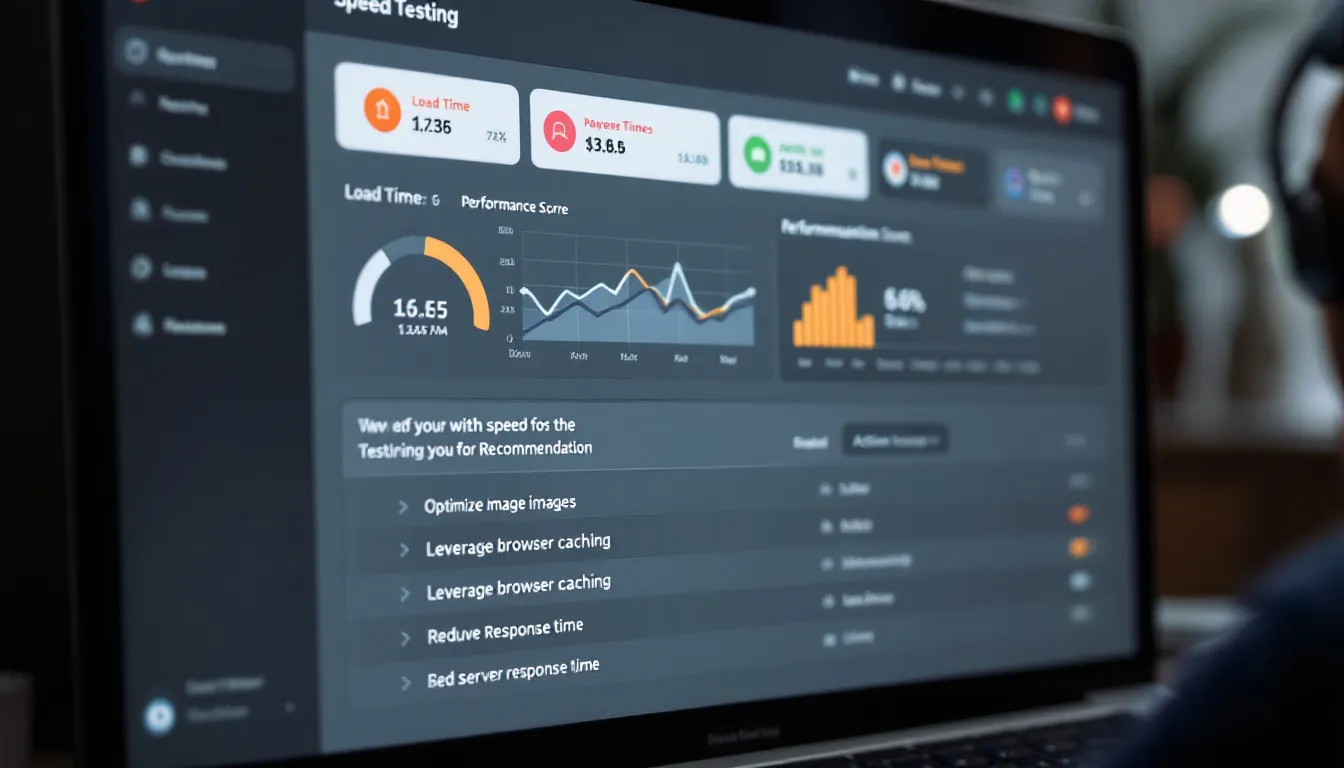
Pingdom Website Speed Test excels at monitoring uptime and load times over extended periods. Use this tool to track your optimization progress and identify performance regressions before they impact customers. The historical data helps validate that your optimizations provide sustained improvements.
Query Monitor wordpress plugin identifies slow database queries and PHP errors directly within your wordpress dashboard. Install this essential tool to monitor your store’s backend performance and identify problematic plugins or custom code. The plugin provides real-time insights into what’s happening behind the scenes when pages load slowly.
For comprehensive testing, examine your store from multiple devices and locations to establish an accurate performance baseline. Mobile performance often differs significantly from desktop, and geographic location can reveal CDN or hosting issues affecting specific customer segments. Be aware that site data, such as browser cache and stored information, can influence the accuracy of your performance test results, so clear cache or use incognito mode for consistent testing.
Choose High-Performance WooCommerce Hosting
Your hosting provider forms the foundation of your woocommerce store’s performance, making this decision critically important for long-term success. Choosing a specialized hosting company that offers managed WordPress or WooCommerce hosting solutions ensures your site benefits from expert support, robust infrastructure, and features tailored for ecommerce. Poor hosting can sabotage even the most carefully optimized store, while excellent hosting can dramatically improve performance with minimal additional effort.
Avoid shared hosting plans that severely limit CPU and memory resources. Shared hosting environments force your store to compete with hundreds of other websites for the same server resources, leading to unpredictable performance during traffic spikes. As your business grows, these limitations become increasingly problematic and can strain your hosting resources, impacting site speed and reliability.
Select managed WordPress hosts like Fancy Campaigns, Kinsta, WP Engine, or SiteGround that offer built-in optimizations specifically designed for WordPress and woocommerce stores. These specialized hosting providers understand the unique requirements of ecommerce websites and configure their servers accordingly. Their optimizations often include automatic image compression, database optimization, and security hardening.
Ensure your hosting provider supports PHP 8.1 or newer, HTTP/3 protocol, and SSD storage across all plans. Check and update your php version through your hosting control panel, which also allows you to manage other important server settings. Using the latest php version provides substantial performance improvements and better compatibility with WordPress, while HTTP/3 offers enhanced speed and security. SSD storage delivers dramatically faster database access compared to traditional hard drives, which is crucial for product catalogs and customer data.
Look for hosting providers offering server-level caching and content delivery network integration. Server-level caching operates independently of wordpress plugins, providing consistent performance even if your caching plugin fails. Built-in CDN integration simplifies global content delivery without requiring separate service configuration. Protecting and optimizing your hosting resources with features like DNS-level firewalls and CDNs ensures your site maintains consistent speed and security, even during high-traffic periods.

Consider cloud hosting solutions on Google Cloud Platform or AWS for ultimate scalability and performance. Cloud hosting automatically adjusts server resources based on traffic demands, preventing slowdowns during sales events or viral marketing campaigns. While more complex to manage, cloud solutions offer unmatched flexibility for growing businesses.
Verify that your hosting provider includes automatic backups, staging environments, and 24/7 technical support. Staging environments allow you to test optimizations safely before applying them to your live store. Reliable backups protect against data loss during optimization attempts, while expert support helps resolve technical issues quickly.
Optimize WooCommerce Core Settings
Woocommerce’s default configuration prioritizes features over performance, making core settings optimization essential for any serious speed improvement effort. These foundational changes often provide immediate performance benefits with minimal technical complexity.
Reduce the number of products displayed per page from the default 16 to 8-12 items maximum. Fewer products per page means less data to load, fewer database queries, and faster page rendering. This change particularly benefits mobile users who scroll through product listings. Consider your specific product types—complex products with multiple images benefit more from reduced per-page counts.
Disable unnecessary features like cart fragments, pingbacks, and emoji scripts that add overhead without providing value to most stores. Cart fragments generate AJAX requests on every page load, significantly slowing performance even when customers aren’t actively shopping. Pingbacks create unnecessary HTTP requests to external sites, while emoji scripts load additional JavaScript for basic functionality most stores don’t need.
Set your wordpress memory limit to 256MB or higher in your wp-config.php file by adding: define(‘WP_MEMORY_LIMIT’, ‘256M’);. Insufficient memory causes PHP fatal errors and forces your server to work harder to process requests. Higher memory limits allow your store to handle complex operations smoothly, especially during checkout processes or when processing large product catalogs.
Remove unused wordpress themes and deactivate unnecessary plugins that consume server resources even when inactive. Each installed theme and plugin adds files to your server and potential security vulnerabilities. Maintaining only essential themes and plugins reduces your site’s attack surface and improves overall system efficiency. Additionally, regularly clean and optimize your woocommerce database to remove unnecessary data such as old revisions, transients, and spam comments. Using tools like WP-Optimize or WP Rocket can help keep your woocommerce database lean, improving website performance and server response times.
Enable GZIP compression through your .htaccess file or server configuration to reduce file transfer sizes by up to 70%. GZIP compression automatically compresses text-based files before sending them to browsers, dramatically reducing bandwidth usage and load times. Most modern hosting providers enable this by default, but verification ensures optimal configuration.
Configure proper permalink structures for better caching compatibility and SEO benefits. Avoid using date-based permalinks or complex parameter structures that prevent effective caching. Simple, descriptive URLs like /product-name/ work best for both performance and search engine optimization.
Select a Lightning-Fast WooCommerce Theme
Your woocommerce theme choice profoundly impacts site speed, potentially doubling or tripling load times compared to performance-optimized alternatives. Many popular themes prioritize visual appeal over performance, creating beautiful but sluggish stores that frustrate customers and search engines.
Choose performance-optimized themes like Astra, GeneratePress, or Shoptimizer that prioritize speed without sacrificing functionality. These themes use clean, efficient code and minimal external dependencies. Astra Pro, for example, typically loads in under 0.5 seconds on quality hosting, while maintaining full woocommerce compatibility and customization options.
Avoid bloated multipurpose themes that include 50+ demos, built-in page builders, and excessive features most stores never use. These themes often load unnecessary CSS and JavaScript files on every page, regardless of whether specific features are actually needed. In particular, they tend to load multiple large css files, many of which are not used, increasing HTTP requests and slowing down your woocommerce site. The convenience of having everything included comes at a severe performance cost.
Some popular themes known for being feature-rich but potentially heavy and slower include Avada, Divi, and Flatsome. While these themes offer extensive customization options and visual builders, they can significantly increase page load times due to their large file sizes and numerous dependencies. If you choose to use such themes, be prepared to invest additional effort in performance optimization.
Instead, consider lightweight and speed-optimized themes like Astra, GeneratePress, or Shoptimizer, which provide essential WooCommerce compatibility without unnecessary bloat. These themes focus on clean code, minimal HTTP requests, and faster load times, helping you achieve better overall site performance and user experience.
Test any theme’s demo speed using Google PageSpeed Insights before making a purchase decision. Many theme developers optimize their demo sites with specialized configurations that don’t reflect real-world performance. If a theme’s demo scores poorly on speed tests, the final implementation will likely perform even worse with real content and plugins.

Ensure your chosen theme uses modern CSS Grid and Flexbox layouts instead of legacy table-based or float-based designs. Modern CSS techniques require less code to achieve the same visual results, improving both load times and mobile responsiveness. These approaches also provide better accessibility and future-proofing for your store.
Verify that your theme includes built-in schema markup and Core Web Vitals optimization. Schema markup helps search engines understand your product information, potentially improving search rankings and click-through rates. Themes optimized for Core Web Vitals include features like critical CSS inlining and optimized resource loading.
Select themes with lazy loading and critical CSS functionality built-in to avoid relying on additional plugins for these essential optimizations. Theme-level implementation often performs better than plugin-based solutions and reduces potential conflicts between different optimization tools.
Image Optimization and Delivery
Product images typically account for 60-80% of your woocommerce store’s total page weight, making image optimization one of the highest-impact performance improvements you can implement. Using image optimization plugins can automate the process, helping to improve site speed and overall performance. Poor image optimization can single-handedly destroy an otherwise well-optimized store’s performance.
To optimize images for faster loading and better performance, consider compressing and resizing them before uploading. Image compression plugins are essential tools that can help reduce file sizes without sacrificing quality, ensuring your site loads quickly and efficiently.
Compress and Resize Product Images
Compress JPEG images to 80-85% quality using tools like TinyPNG or ImageOptim for optimal balance between file size and visual quality. Higher compression levels often provide minimal file size benefits while noticeably degrading image quality. Test different compression levels on your specific product types to find the optimal balance for your store.
Convert product images to WebP format for 25-35% smaller file sizes compared to equivalent JPEG images. WebP provides superior compression while maintaining excellent visual quality across most browsers. Modern browsers support WebP natively, with automatic fallbacks available for older browsers through proper implementation.
Resize images to exact display dimensions rather than relying on HTML or CSS scaling. Uploading full-resolution images and scaling them down wastes bandwidth and processing power. If your product thumbnails display at 300×300 pixels, upload images at exactly that size to eliminate unnecessary data transfer.
Use modern image formats like AVIF where browser support allows for even greater file size reductions. AVIF can provide 50% smaller file sizes than JPEG while maintaining equivalent visual quality. However, implement AVIF with proper fallbacks since browser support remains limited compared to WebP.
Implement responsive images using srcset attributes to serve appropriate image sizes based on device capabilities and screen resolutions. This prevents mobile devices from downloading full-resolution desktop images unnecessarily, dramatically improving mobile performance and reducing data usage for your customers.
Implement Lazy Loading
Enable native lazy loading for images below the fold using the loading=”lazy” HTML attribute. This browser-native feature allows you to lazy load images by deferring their loading until users scroll near them, reducing initial page load times and bandwidth usage. Native lazy loading requires no additional JavaScript and provides excellent performance benefits.
Use the Intersection Observer API for advanced lazy loading control when native options prove insufficient. JavaScript-based solutions offer more granular control over loading triggers and behaviors, allowing optimization for specific user interaction patterns or device types.
Preload above-the-fold images using rel=”preload” link tags to ensure critical visual content loads immediately. Hero images, logos, and primary product photos should load instantly to provide good user experience, even while other images load lazily in the background.

Consider lazy loading for product galleries and related product images that often remain unseen during typical browsing sessions. These secondary images consume significant bandwidth without necessarily contributing to immediate user experience or conversion rates.
Advanced Caching Strategies
Caching represents one of the most effective methods to speed up your woocommerce store by serving pre-generated content instead of processing each request from scratch. Choosing the right cache plugin is crucial for woocommerce stores, as it helps balance performance with the need to exclude dynamic pages like cart, user accounts, and checkout from caching.
However, woocommerce’s dynamic nature requires sophisticated caching strategies that account for personalized content and ecommerce functionality.
Page Caching Solutions
Install WP Rocket, W3 Total Cache, or LiteSpeed Cache for comprehensive page caching that dramatically reduces server processing time. These wordpress caching plugins generate static HTML versions of your pages, eliminating the need for PHP processing and database queries on subsequent visits. WP Rocket particularly excels with woocommerce compatibility and user-friendly configuration.
Configure object caching using Redis or Memcached for database query optimization. Object caching stores the results of expensive database operations in memory, reducing response times from milliseconds to microseconds for repeat queries. This optimization particularly benefits product searches, category browsing, and customer account operations.
Enable browser caching with proper cache headers, setting one-year expiration for static assets like CSS, JavaScript, and images. Browser caching allows returning visitors to load your store using previously downloaded files, dramatically improving perceived performance. Configure different cache durations for different file types based on how frequently they change.
Set up fragment caching for dynamic woocommerce elements that can’t benefit from full-page caching. Cart widgets, user-specific content, and recently viewed products can be cached individually while maintaining personalization. Fragment caching provides performance benefits for dynamic elements without breaking functionality.
Exclude cart, checkout, and my-account pages from full-page caching to maintain their dynamic behavior. These pages must remain personalized and up-to-date for proper ecommerce functionality. However, static elements within these pages can still benefit from other caching techniques.
Database Optimization
Clean expired transients, spam comments, and unnecessary data using the WP-Optimize plugin or similar database maintenance tools. WordPress and woocommerce accumulate significant database bloat over time, slowing queries and increasing server resource usage. Regular cleanup maintains optimal database performance.
Remove unused post revisions and auto-draft posts that accumulate in your wordpress database over time. Every revision creates additional database entries that slow queries, particularly for content-heavy stores with frequent product updates. Limit revision storage to 3-5 versions maximum for essential content tracking.
Optimize database tables using phpMyAdmin or WP-CLI commands to defragment and rebuild indexes for faster query performance. Database optimization reorganizes stored data for more efficient access patterns, similar to defragmenting a hard drive. Perform this maintenance quarterly or after major content updates.
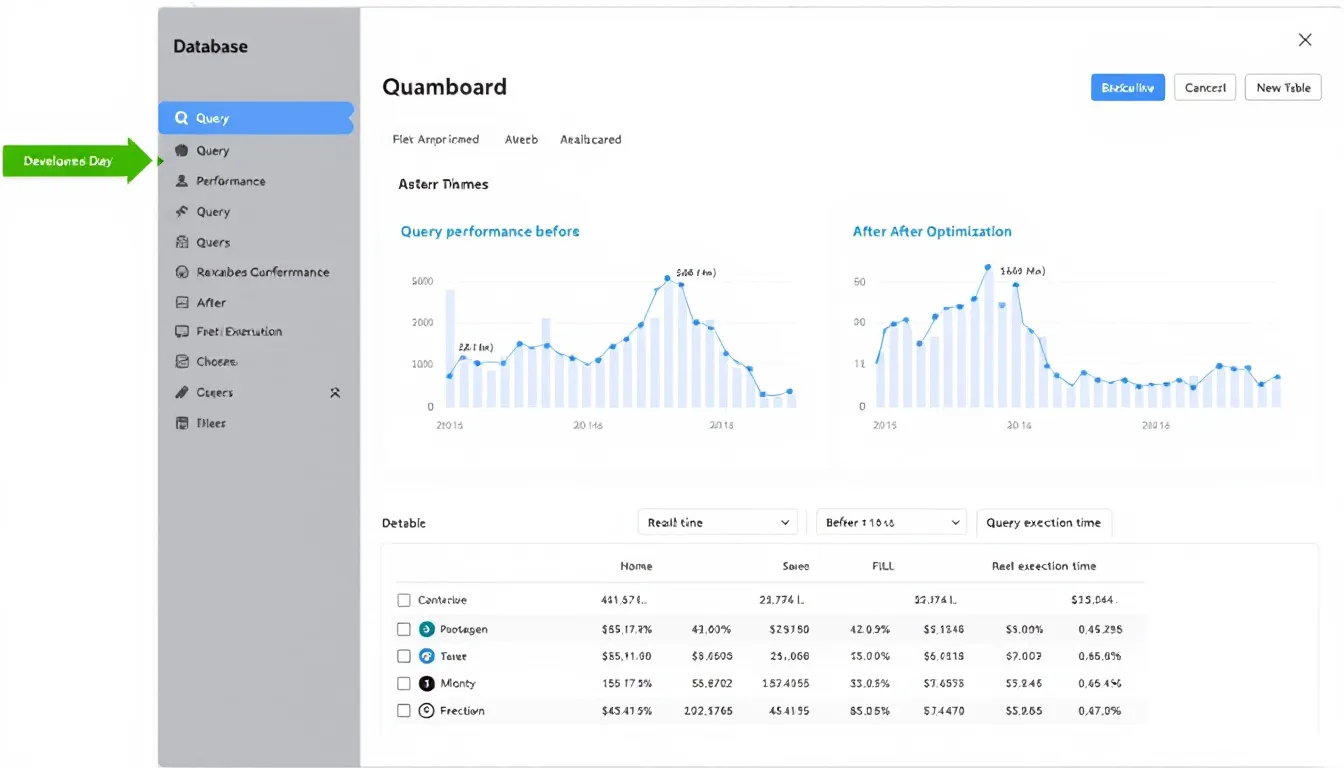
Index frequently queried database columns for faster lookups, particularly for custom product attributes and meta fields. Proper indexing can reduce complex query execution times from seconds to milliseconds, especially important for large product catalogs with extensive filtering options.
Schedule weekly database cleanup tasks using automated tools or cron jobs to maintain optimal performance without manual intervention. Automated maintenance ensures consistent database performance even during busy periods when manual optimization might be overlooked.
Content Delivery Network (CDN) Setup
A content delivery network distributes your woocommerce store’s static assets across geographically distributed servers, reducing latency by serving content from locations closer to your customers. By delivering static files from edge servers, a CDN significantly improves the loading speed of each web page for users around the world. CDN implementation can improve global loading times by 40-60% while reducing server load.
Implement Cloudflare, KeyCDN, or MaxCDN with 200+ global edge locations for comprehensive geographic coverage. These providers maintain servers worldwide, ensuring fast content delivery regardless of customer location. Cloudflare offers additional security features, while KeyCDN provides specialized ecommerce optimization tools.
Configure your CDN to serve static assets including CSS, JavaScript, and images from the closest server to each visitor. Static files benefit most from CDN distribution since they don’t require server-side processing. This configuration reduces bandwidth usage on your primary hosting provider while improving global performance.
Enable CDN features like Brotli compression and HTTP/3 support for additional performance benefits. Brotli compression provides superior file size reduction compared to GZIP, while HTTP/3 offers improved connection efficiency. These modern protocols enhance the performance benefits provided by geographic distribution.
Set up geo-blocking for regions not served by your store to reduce unnecessary traffic and potential security threats. If you only ship domestically, blocking international traffic can improve performance for legitimate customers while reducing server load from bot traffic and potential attacks.
Monitor CDN performance using real user metrics (RUM) to ensure optimal configuration and identify potential issues. CDN providers offer analytics showing cache hit rates, bandwidth savings, and geographic performance distribution. Regular monitoring helps optimize CDN settings for your specific traffic patterns.
Configure proper cache headers for different file types to maximize CDN effectiveness. Images and fonts can cache for extended periods, while CSS and JavaScript may require more frequent updates. Proper cache configuration balances performance benefits with content freshness requirements.
Plugin and Extension Management
WordPress plugins provide essential functionality for woocommerce stores, but each plugin adds processing overhead that can significantly impact site speed. Strategic plugin management balances functionality with performance to maintain an optimized store.
Audit installed plugins regularly and remove unused or redundant ones that consume server resources without providing value. Even deactivated plugins can sometimes load files and affect performance. Maintain only essential plugins that directly contribute to your store’s functionality or business goals.
When removing unused post revisions, consider using a free plugin to easily disable or limit post revisions without code changes. Replace heavy plugins with lightweight alternatives when possible. For example, use Code Snippets plugin instead of functionality-specific plugins for simple customizations. The Code Snippets plugin allows custom code implementation without the overhead of multiple individual plugins for basic modifications.
Load plugins conditionally on specific pages using Plugin Organizer or similar optimization tools. Many plugins load globally even when only needed on specific pages, wasting resources. Conditional loading ensures plugins only activate where necessary, reducing overhead on pages where they provide no benefit.
Monitor plugin performance impact using Query Monitor to identify resource-intensive extensions. This tool reveals which plugins generate the most database queries, consume the most memory, or add the longest processing delays. Use this data to prioritize optimization efforts on the most problematic plugins.
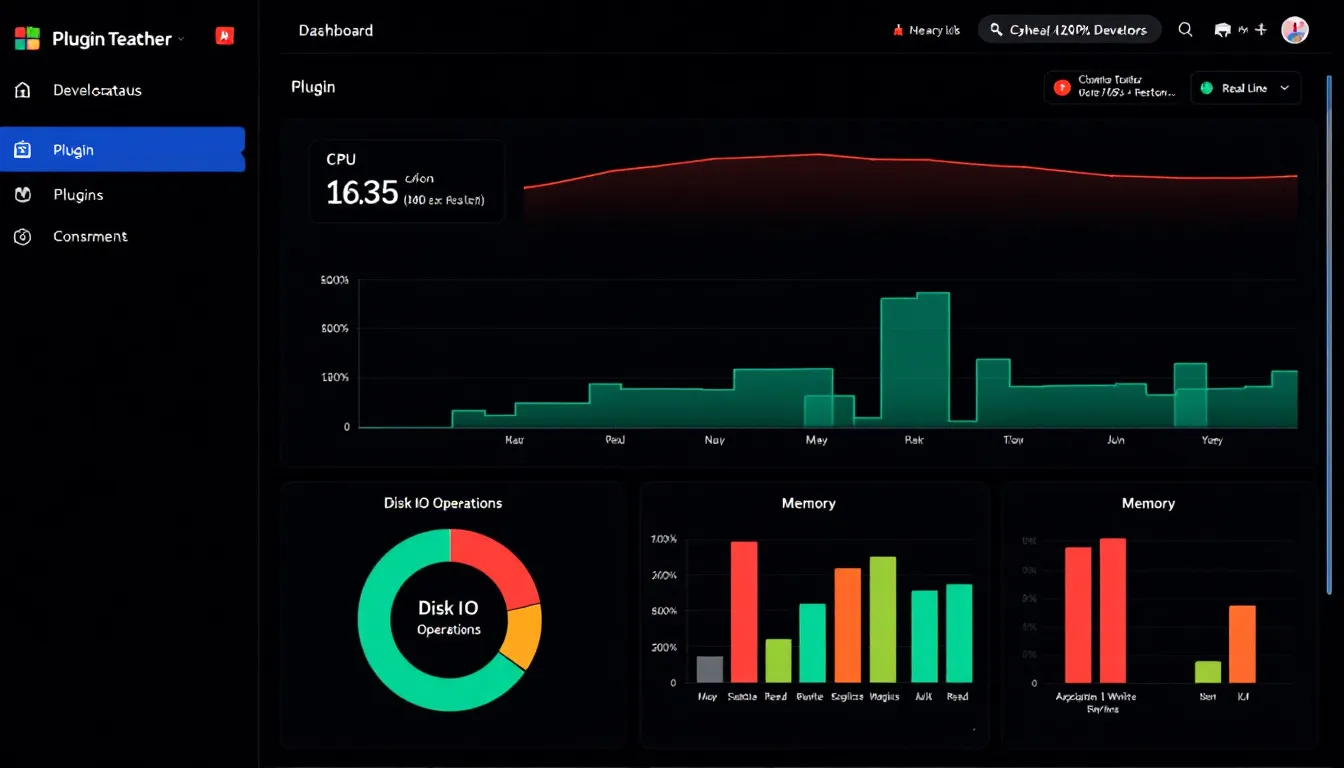
Update all plugins to latest versions for security patches and performance improvements. Plugin developers regularly optimize their code and fix performance issues in updates. Outdated plugins may contain inefficient code that newer versions have addressed.
Choose plugins with minimal frontend JavaScript and CSS overhead when selecting new extensions. Review plugin descriptions and user feedback to understand the performance impact before installation. Plugins that add significant frontend resources should provide substantial value to justify their performance cost.
Mobile Performance Optimization
Mobile devices account for over 54% of ecommerce traffic, making mobile performance optimization crucial for business success. Mobile networks, processing power, and screen sizes create unique optimization challenges that require specialized attention.
Prioritize mobile-first design with touch-friendly navigation that reduces interaction complexity and improves user experience. Simplified navigation reduces the amount of code required for mobile interfaces while improving usability. Touch-friendly elements also reduce the likelihood of accidental clicks that can slow the browsing experience.
Reduce mobile page size to under 1MB for 3G network compatibility, ensuring your store remains accessible for customers with slower connections. Mobile data plans often have speed or data limitations that make large pages problematic. Optimizing for 3G ensures excellent performance across all mobile network types.
Implement Accelerated Mobile Pages (AMP) for product pages to provide lightning-fast mobile loading experiences. AMP creates simplified versions of pages that load nearly instantly on mobile devices. While AMP requires additional development effort, the mobile performance benefits can significantly improve mobile conversion rates.
Optimize the mobile checkout flow to minimize steps and form fields that create friction during the purchase process. Mobile users have less patience for complex checkout processes, and simplified flows reduce abandonment rates while improving perceived performance. Consider mobile-specific payment options like digital wallets for faster completion.
Use mobile-specific image sizes and progressive loading to reduce data usage and improve perceived performance. Mobile screens require smaller images, and serving desktop-sized images to mobile devices wastes bandwidth and slows loading. Progressive loading shows low-resolution versions immediately while high-resolution images load in the background.
Test mobile performance on real devices using BrowserStack or LambdaTest to understand actual user experience across different devices and network conditions. Emulators and desktop testing don’t accurately represent real mobile performance, particularly regarding network limitations and processing constraints.
WooCommerce-Specific Optimizations
Woocommerce includes several features that prioritize functionality over performance, requiring specific optimizations to achieve optimal speed without breaking essential ecommerce functionality. These optimizations are crucial for improving WooCommerce performance, ensuring faster load times and a better user experience for your online store.
Disable Cart Fragments
Remove wc-cart-fragments AJAX requests that generate unnecessary server requests on every page load, even when customers aren’t actively shopping. Cart fragments update cart totals and item counts across your site but create performance overhead for all visitors. This optimization can improve loading times by 200-500ms per page.
Use a code snippet or the Disable Cart Fragments plugin to safely remove this functionality without affecting core ecommerce operations. Add this code to your theme’s functions.php file or use a code snippets plugin:
add_action( 'wp_enqueue_scripts', 'disable_woocommerce_cart_fragments', 11 );
function disable_woocommerce_cart_fragments() {
    if (is_admin()) return;
    wp_dequeue_script('wc-cart-fragments');
}
Enable “Redirect to cart page after successful addition” in woocommerce settings to maintain good user experience without cart fragment overhead. This setting provides clear feedback when customers add products while eliminating the need for dynamic cart updates across all pages.
Implement alternative cart update methods for better user experience, such as notification bars or popup confirmations that don’t require continuous server communication. These solutions provide customer feedback without the performance impact of constant background requests.
Optimize Product Catalog
Limit related products display to 4-6 items maximum to reduce database queries and page complexity. Related products require additional queries to identify and display suggestions, and excessive numbers provide diminishing returns while increasing load times. Focus on quality recommendations rather than quantity.
Use pagination instead of infinite scroll for large product catalogs to improve perceived performance and reduce initial page load times. Infinite scroll requires loading all products as users browse, creating increasingly heavy pages. Pagination allows customers to browse efficiently while maintaining fast page loads.
Implement AJAX filtering without page reloads to improve browsing experience while maintaining performance. AJAX filters allow customers to refine product searches without generating new page loads, improving user experience while reducing server overhead. Ensure AJAX implementations include proper caching for filtered results.
Optimize product search with autocomplete and typo tolerance to help customers find products quickly without multiple queries. Efficient search reduces the number of pages customers must visit to find desired products, improving both user experience and server performance. Consider implementing search result caching for popular queries.
Cache expensive product queries and variation lookups that involve complex database operations. Product variations, pricing calculations, and inventory checks can generate resource-intensive queries. Caching these results dramatically improves performance for product pages and category browsing.
Advanced Performance Techniques
For stores requiring maximum performance, advanced optimization techniques can provide additional speed improvements beyond standard optimization methods. These techniques require more technical expertise but offer substantial benefits for high-traffic or complex stores. In particular, these advanced methods are especially beneficial for high-traffic WooCommerce sites, where optimized performance and tailored hosting can significantly enhance user experience and search engine rankings.
Critical CSS and Resource Optimization
Generate and inline critical CSS for above-the-fold content to eliminate render-blocking stylesheets and improve First Contentful Paint scores. Critical CSS includes only the styles necessary to render visible content immediately, while non-critical styles load in the background. Tools like Critical CSS Generator can automate this process.
Defer non-critical CSS loading using the media=”print” technique that loads stylesheets without blocking page rendering. This approach loads essential styles immediately while deferring decorative or below-the-fold styles until after initial page rendering completes. Implement JavaScript to change media=”print” to media=”all” after page load.
Minify and concatenate CSS and JavaScript files using Autoptimize or Asset CleanUp to reduce HTTP requests and file sizes. Minification removes unnecessary whitespace and comments, while concatenation combines multiple files into single requests. These optimizations can reduce total resource loading time by 20-40%.
Remove unused CSS using PurgeCSS or UnCSS tools to eliminate styles that don’t apply to your specific pages. Themes and plugins often include comprehensive stylesheets covering many scenarios, but individual pages only use a fraction of included styles. Removing unused CSS can reduce stylesheet sizes by 40-70%.
Preload key resources like fonts and hero images using rel=”preload” link tags to ensure critical content loads immediately. Preloading tells browsers to download essential resources before they’re discovered naturally in page parsing, improving perceived performance for important visual elements.
Database and Server Optimization
Enable OPcache for PHP to reduce compilation overhead and improve script execution speed. OPcache stores compiled PHP bytecode in memory, eliminating the need to recompile scripts on each request. This optimization can improve PHP execution speed by 30-50% with minimal server resource impact.
Configure MySQL query cache and buffer pool size to optimize database performance for your specific traffic patterns. Query cache stores the results of SELECT statements, while proper buffer pool sizing ensures frequently accessed data remains in memory. These optimizations require server-level access but provide substantial performance benefits.
Use PHP 8.1 or newer with JIT (Just-In-Time) compilation for better performance compared to older PHP versions. PHP 8.1 includes significant performance improvements and the JIT compiler can provide additional speed benefits for certain workloads. Ensure your hosting provider supports modern PHP versions with optimal configuration.
Monitor server resources using New Relic, Kinsta APM, or similar application performance monitoring tools to identify bottlenecks and optimization opportunities. These tools provide detailed insights into server performance, database query efficiency, and application-level performance metrics that guide optimization efforts.
Implement database read replicas for high-traffic stores to distribute database load across multiple servers. Read replicas handle SELECT queries while write operations remain on the primary database, improving overall database performance for stores with heavy browsing traffic relative to purchase activity.
Performance Monitoring and Maintenance
Ongoing performance monitoring ensures your optimization efforts provide sustained benefits and helps identify issues before they impact customers. Regularly monitoring WooCommerce site speed is crucial to ensure that performance improvements are maintained over time and to quickly address any issues that arise. Performance can degrade over time due to content changes, plugin updates, or increased traffic, making regular monitoring essential.
Set up automated performance monitoring using UptimeRobot, Pingdom, or similar services to track loading times and uptime across different geographic locations. Automated monitoring provides alerts when performance degrades, allowing quick resolution before customer impact becomes significant. Configure alerts for both downtime and performance thresholds.
Track Core Web Vitals in Google Search Console weekly to monitor your store’s search engine optimization performance and identify trends. Google Search Console provides real user data showing how actual customers experience your site speed, which often differs from synthetic testing results. Monitor trends rather than individual data points for meaningful insights.
Monitor server response times and database query performance using tools like Query Monitor or server-level monitoring provided by your hosting provider. Backend performance issues often appear before frontend performance degrades, allowing proactive optimization. Focus on identifying queries or processes that show increasing execution times.
Conduct monthly speed audits and performance reviews using multiple testing tools to maintain comprehensive performance visibility. Regular audits help identify gradual performance degradation that might not trigger automated alerts. Document optimization changes and their impact to guide future improvement efforts.
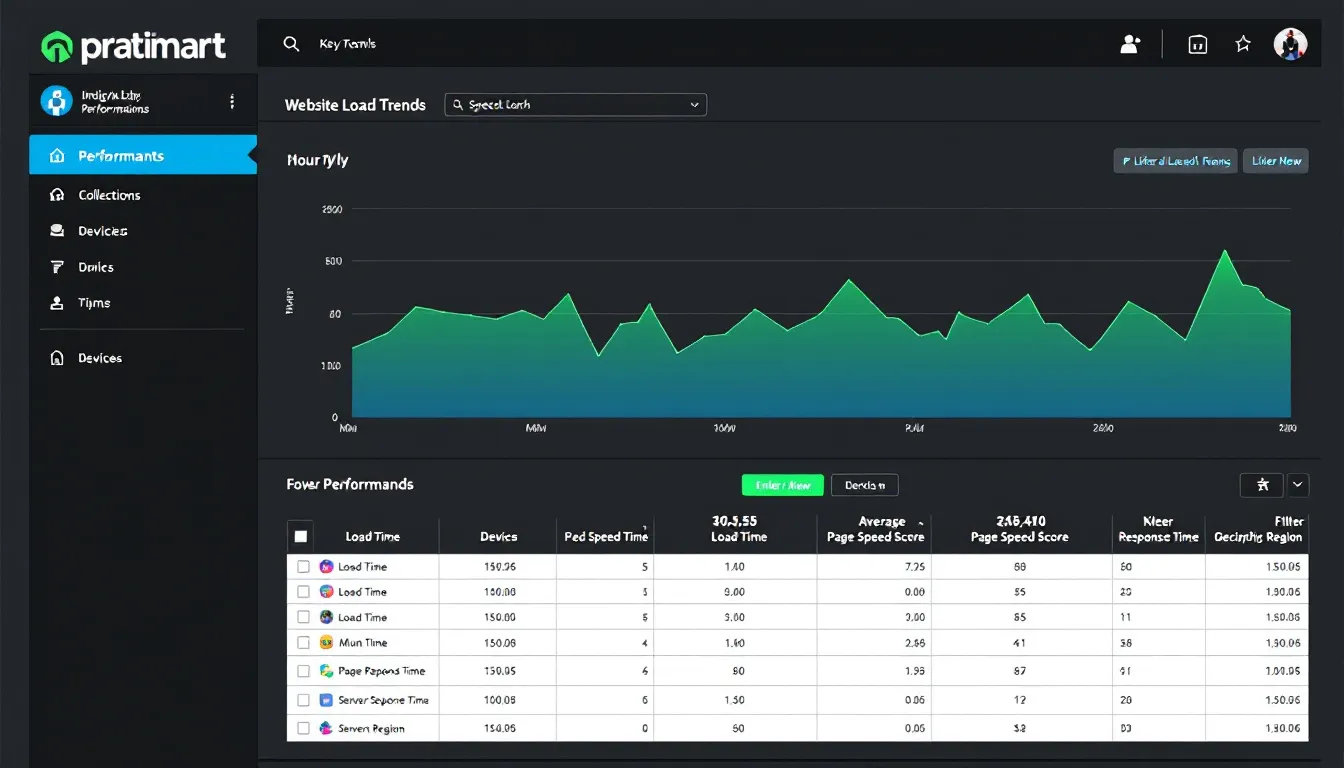
A/B test performance improvements to measure business impact and validate optimization priorities. Not all performance improvements translate equally to business results, and testing helps identify which optimizations provide the greatest return on investment. Test loading speed improvements against conversion rates and revenue metrics.
Create performance budgets and alerts for regression detection to prevent performance degradation during normal business operations. Performance budgets establish acceptable thresholds for page size, loading time, and resource usage. Automated alerts notify you when new content or changes exceed these budgets, enabling quick correction.
Regular performance maintenance should include plugin updates, database optimization, and content review to ensure sustained optimization benefits. Schedule monthly maintenance tasks including cache clearing, database cleanup, and performance testing to maintain optimal store performance as your business grows and evolves.
Conclusion
Implementing these 14 proven methods to speed up your woocommerce store will dramatically improve customer experience, search engine rankings, and conversion rates. Start with high-impact optimizations like hosting upgrades, image optimization, and caching implementation for immediate results, then gradually implement more advanced techniques as your technical expertise and business needs evolve.
Remember that woocommerce speed optimization is an ongoing process, not a one-time task. Regular monitoring, testing, and maintenance ensure your store maintains optimal performance as your business grows and technology continues advancing. The investment in performance optimization pays dividends through improved customer satisfaction, higher search rankings, and increased revenue that compound over time.
Begin your optimization journey today by testing your current site speed and implementing the hosting and caching improvements that typically provide the most dramatic initial results. Your customers, search engines, and bottom line will thank you for the effort.
Security and Performance Enhancements
Security and performance go hand in hand for any successful WooCommerce store. A secure online store not only protects your business and customer data but also ensures your site speed and performance remain consistently high. Security breaches, brute force attacks, and malware can quickly turn a fast WooCommerce website into a slow, unreliable one—damaging your reputation and bottom line.
Start by implementing a robust web application firewall (WAF) to block malicious traffic before it reaches your hosting server. Many managed hosting providers offer built-in firewalls, but you can also use plugins like Wordfence or Sucuri Security for additional protection. These tools help prevent brute force attacks and DDoS attempts that can overwhelm server resources and slow down your WooCommerce site.
Enable SSL certificates across your entire WooCommerce store to encrypt customer data and boost your search engine rankings. Modern browsers and search engines expect every ecommerce site to use HTTPS, and SSL is now a baseline requirement for both security and SEO performance.
Keep your WordPress core, WooCommerce plugin, and all extensions updated to the latest versions. Outdated software is a common entry point for attackers and can introduce vulnerabilities that impact both security and site speed. Enable automatic updates where possible, and schedule regular manual checks for critical plugins.
Limit login attempts and enforce strong password policies to protect your online store from brute force attacks. Plugins like Login LockDown or native hosting security features can restrict repeated failed login attempts, reducing server load and preventing unauthorized access.
Regularly scan your WooCommerce website for malware and vulnerabilities using security plugins or your hosting provider’s built-in tools. Early detection of malicious code or suspicious activity allows you to address issues before they impact your store’s performance or customer trust.
Leverage two-factor authentication (2FA) for all admin accounts to add an extra layer of security. 2FA significantly reduces the risk of unauthorized access, even if passwords are compromised, and helps maintain the integrity and speed of your WooCommerce backend.
Monitor your site for suspicious activity and set up automated alerts for unusual spikes in traffic or server resource usage. Many security plugins and hosting dashboards offer real-time monitoring, helping you quickly identify and mitigate threats that could slow down your WooCommerce store.
Finally, schedule regular security audits and performance reviews as part of your ongoing maintenance routine. Proactive security management not only protects your online store but also ensures your WooCommerce website performance remains at its peak—delivering a fast, reliable shopping experience that builds customer trust and drives conversions.